👥 Users
The Users page allows administrators to manage Web UI access, configure account profiles, enforce password policies, and manage Multi-Factor Authentication (MFA).
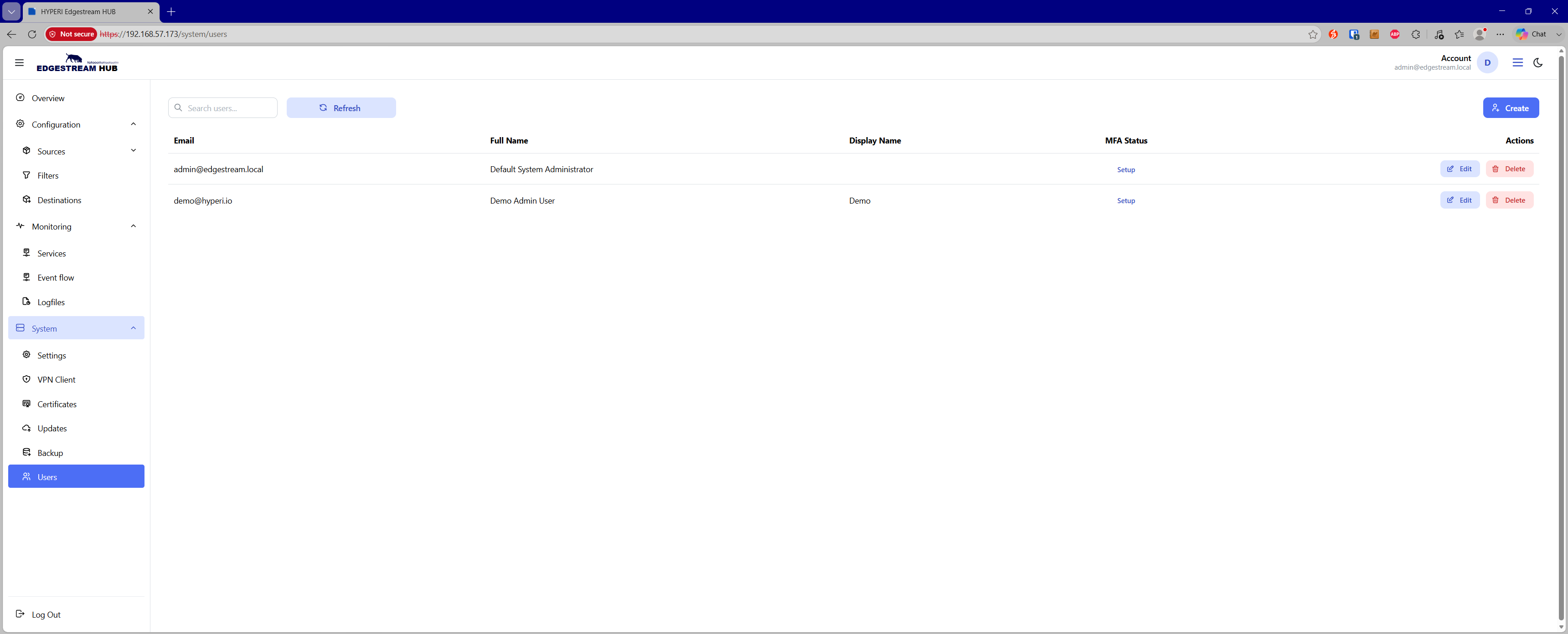
User Management & Safety Rules
Add New Users — Provision administrative and operational user accounts with dedicated email addresses, names, and passwords.
Account Enable/Disable — Toggle user access on or off without deleting account history or profile settings.
Self-Deletion Protection — Administrators cannot delete their own active account session.
Single Account Safeguard — To prevent accidental administrative lockout, the system prevents deleting the last remaining user account on the appliance.
Password Policy Enforcement
New user passwords must meet complexity requirements:
Must be at least 12 characters in length.
Must contain at least one uppercase letter, one lowercase letter, one numeric digit, and one special symbol.
Must not contain the user’s full name, display name, or email prefix.
Multi-Factor Authentication (MFA)
The Web UI integrates time-based one-time password (TOTP) MFA:
MFA Status — Displays whether two-factor authentication is active or unconfigured for each user.
Enrollment — Generates a unique QR code compatible with standard authenticator applications (e.g., Google Authenticator).
Validation & Activation — Requires entering and validating a 6-digit TOTP code before MFA can be enabled.
Administrative Reset — Existing MFA tokens can be disabled directly from the user edit drawer if an authenticator device is lost.
Edit & Drawer Actions
Clicking Edit on a user opens a side drawer divided into three sections:
Details — Update account enabled status, full name, and display name.
Password — Authenticate and update the account password.
Multi-Factor Auth — Manage TOTP registration and toggle 2FA protection.