Setup Winlogbeat to send events to Edgestream Hub
Edgestream Hub Configuration
Edit the system beats source in Configuration -> Sources or to create a new source select create and use Logstash as the Type.
Set the toggle to Enabled.
Set the address to listen on. By default this is any address on the Edgestream Hub (0.0.0.0) and port 5044. Choose the default or select an available port.
Set the mode to TCP and Decoding.Codec to json.
Select a route_label to identify this source for routing, such as beats.
Select Update or Create to save the settings. Next we will generate a self-signed certificate to encrypt the connection between the Winlogbeat client and Edgestream Hub server.
Generating TLS Certificates
The following commands will generate a certificate authority and self-signed certificates for this test scenario. For production systems use your organisations PKI infrastructure for certificates or a public authority.
Create Edgestream-Hub Beats Server Certificate
Run the following command to generate a certificate for your Edgestream-Hub Beats receiver:
openssl genrsa -out edgestream-hub-beats.key 4096
Generate a request:
openssl req -new -key edgestream-hub-beats.key -out edgestream-hub-beats.csr
You are about to be asked to enter information that will be incorporated
into your certificate request.
What you are about to enter is what is called a Distinguished Name or a DN.
There are quite a few fields but you can leave some blank
For some fields there will be a default value,
If you enter '.', the field will be left blank.
-----
Country Name (2 letter code) [AU]:
State or Province Name (full name) [Some-State]:ACT
Locality Name (eg, city) []:Canberra
Organization Name (eg, company) [Internet Widgits Pty Ltd]:Hypersec
Organizational Unit Name (eg, section) []:Infrastructure
Common Name (e.g. server FQDN or YOUR name) []:hub.edgestream-hub.local
Email Address []:support@hypersec.io

Please enter the following 'extra' attributes
to be sent with your certificate request
A challenge password []:
An optional company name []:
In this example I did not provide a password which is optional.
Now we will sign the key using our certificate authority created above:
openssl x509 -req -in edgestream-hub-beats.csr -CA ca.pem -CAkey ca.key -CAcreateserial -out edgestream-hub-beats.crt -days 500 -sha256
Upload the Certificates
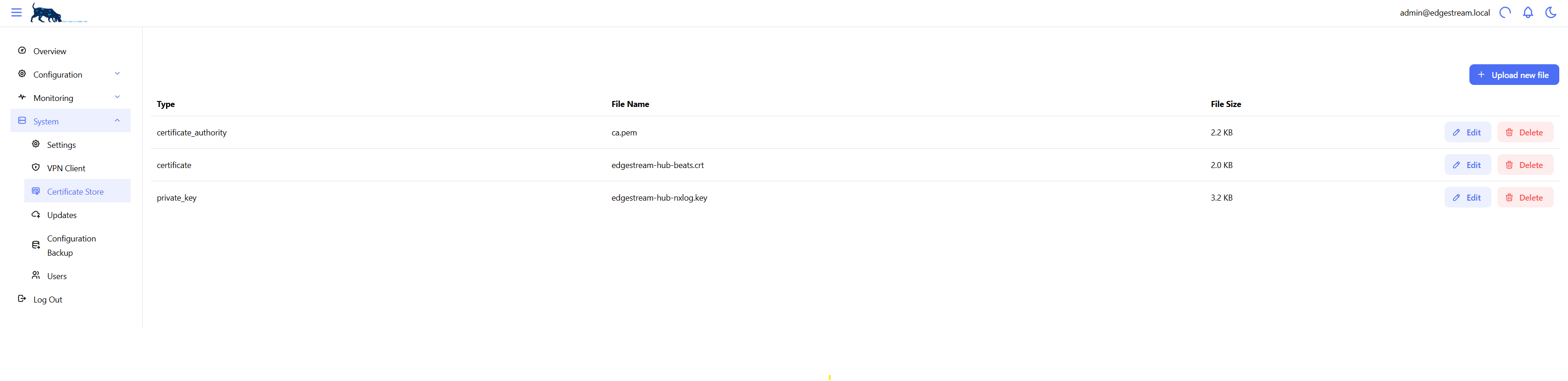
In the Web UI navigate to System -> Certificate Store and select Upload new file.
We will upload the following 3 files:
File |
Type |
|---|---|
ca.pem |
Certificate Authority |
edgestream-hub-beats.crt |
Certificate |
edgestream-hub-beats.key |
Private key |
When completed, the keys will be listed in the Certificate Store:
Configuring Certificates in Beats Source
Go back into the Beats source, Configuration -> Sources and click edit next to beats or the source you configured.
Under TLS set the following options:
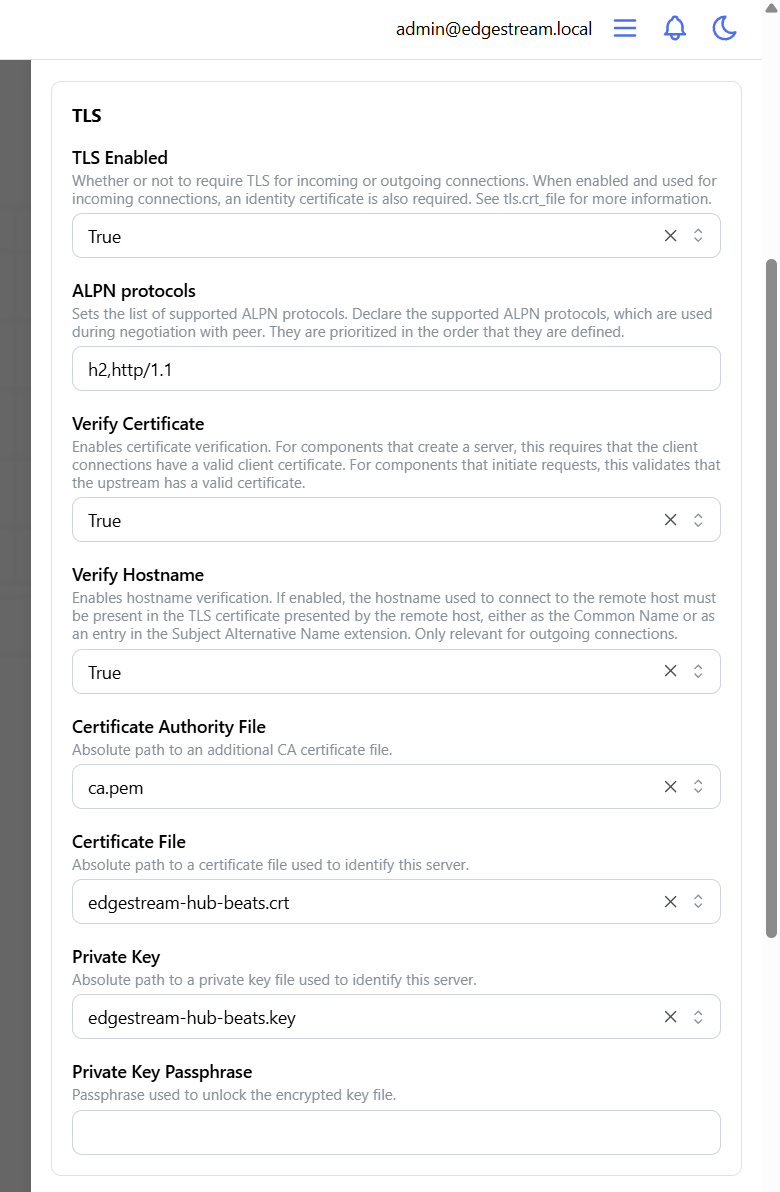
Select Update to save settings.
Note
In production Verify Hostname should be True.
Create Windows Beats Client Certificates
Execute the following command to create client certificates for the windows hosts:
openssl genrsa -out client-beats.key 4096
Generate a client request certificate:
openssl req -new -key client-beats.key -out client-beats.csr
You are about to be asked to enter information that will be incorporated
into your certificate request.
What you are about to enter is what is called a Distinguished Name or a DN.
There are quite a few fields but you can leave some blank
For some fields there will be a default value,
If you enter '.', the field will be left blank.
-----
Country Name (2 letter code) [AU]:AU
State or Province Name (full name) [Some-State]:ACT
Locality Name (eg, city) []:Canberra
Organization Name (eg, company) [Internet Widgits Pty Ltd]:Hypersec
Organizational Unit Name (eg, section) []:Infrastructure
Common Name (e.g. server FQDN or YOUR name) []:client.windows.local
Email Address []:support@hypersec.io

Please enter the following 'extra' attributes
to be sent with your certificate request
A challenge password []:
An optional company name []:
Again in this scenario I haven’t used a challenge password as it is optional.
Sign the client certificate using the certificate authority generated above:
openssl x509 -req -in client-beats.csr -CA ca.pem -CAkey ca.key -CAcreateserial -out client-beats.crt -days 500 -sha256
Installing Winlogbeat
Download Winlogbeat from the Elastic website.
In this example I am downloading winlogbeat-9.1.5-windows-x86_64.zip for windows x86-64.
Extract the files to a directory, in this example I am using C:\Winlogbeat.
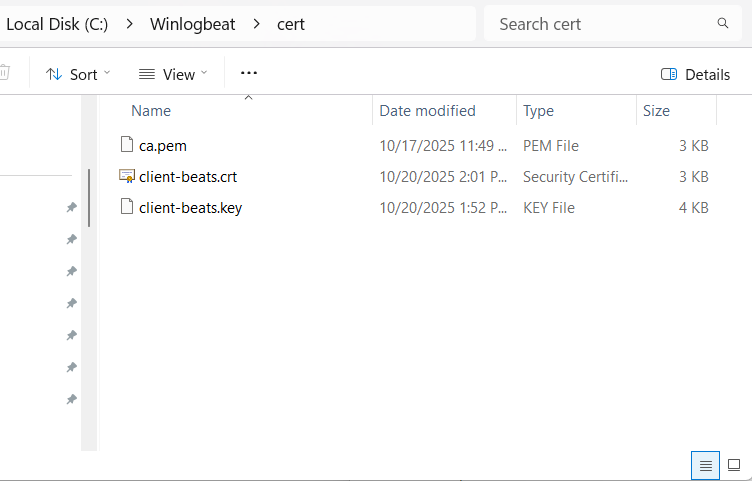
Create the directory C:\Winlogbeat\cert and copy the client certificates and the certificate authority certificate to this location.
Edit the Winlogbeat configuration file C:\Winlogbeat\winlogbeat.yml
An example config that sends all events to the Edgestream-Hub running on IP Address 192.168.22.100:
winlogbeat.event_logs:
  - name: Application
    ignore_older: 72h
  - name: System
  - name: Security
  - name: Microsoft-Windows-Sysmon/Operational
  - name: Windows PowerShell
    event_id: 400, 403, 600, 800
  - name: Microsoft-Windows-PowerShell/Operational
    event_id: 4103, 4104, 4105, 4106
  - name: ForwardedEvents
    tags: [forwarded]
setup.template.settings:
  index.number_of_shards: 1
setup.kibana:
output.logstash:
  hosts: ["192.168.22.100:5044"]
  ssl.certificate_authorities: ["C:/Winlogbeat/cert/ca.pem"]
  ssl.certificate: "C:/Winlogbeat/cert/client-beats.crt"
  ssl.key: "C:/Winlogbeat/cert/client-beats.key"
  ssl.verification_mode: certificate
processors:
  - add_host_metadata:
      when.not.contains.tags: forwarded
  - add_cloud_metadata: ~
In this example I’m allowing untrusted certificates with the ssl.verification_mode set to certificate which only validates that the certificate authority specified signed the certificate, do not use this in production unless you are aware of the security implications.
Open a PowerShell terminal as Administrator and run the following command to start Winlogbeat:
PS C:\Winlogbeat> .\winlogbeat.exe -c .\winlogbeat.yml
You can then optionally install Winlogbeat as a service:
PS C:\Winlogbeat> .\install-service-winlogbeat.ps1
Edgestream-Hub Verification
You can view the statistics for the beats source in the Edgestream-Hub Event Flow monitor.
Navigate to Monitoring -> Event flow:
